AI app tutorial
How to build an app without coding: an Emergent task tracker tutorial
We built and tested a task tracker with Emergent. Copy the exact prompt, follow seven basic checks, and see what 2.38 free credits covered in this run.
A task list is a useful first app to build with AI because you can tell when it works. Add an item, change its name, mark it done, reload the page. A polished screenshot cannot answer those questions for you.
On September 16, 2026, we used Emergent to generate a small task tracker from a written request, then exercised the preview ourselves. It passed seven basic test groups. The free-credit balance went from 10 to 7.62, a difference of 2.38 credits for this limited run. We did not buy credits or connect an external service.
This tutorial follows that build, including the interruption that needed a reply. The result is a browser-based demo with local storage, not a finished service for customers. You do not need to write code to follow the exercise, but you do need to check what the AI produces.
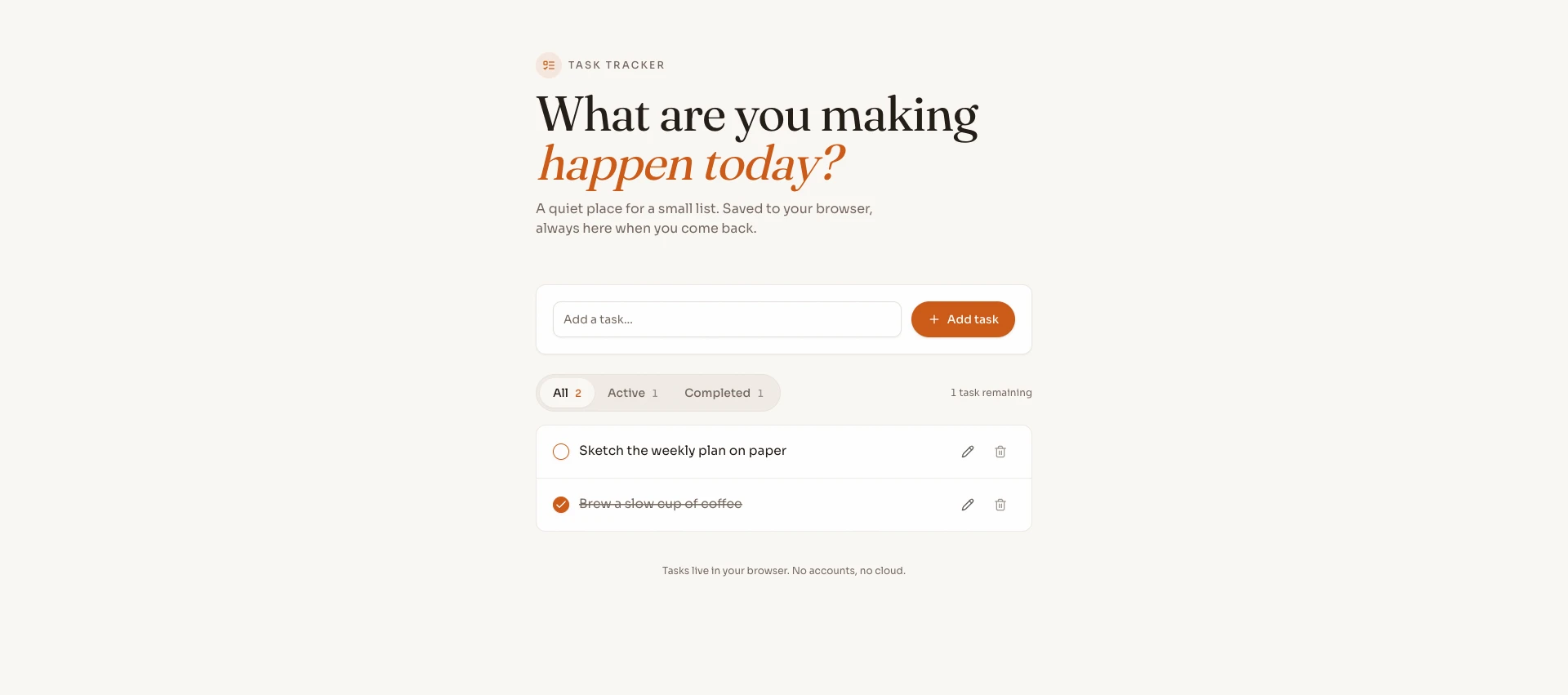
The generated desktop preview. One sample task is active and one is complete; all task text in these screenshots is synthetic.
1. Keep the first app deliberately small
For this exercise, you need an Emergent account, a browser, and enough available credits to try a build. Check your own balance before starting; our opening balance is an observation about our account, not a promise about what every new account receives.
We chose a personal task tracker rather than a shop or a team dashboard. It only needs a text field, a list, and a few actions. There are no payments, accounts, external APIs, or server-side data to configure.
Write down what “working” means before you ask for an app:
- A task needs a non-empty title.
- You can add, edit, delete, and mark tasks complete.
- All, Active, and Completed show the appropriate tasks.
- Reloading the same preview in the same browser keeps the list.
The prompt also asks for switching completed tasks back to active. We did not separately test that reverse action, so it is not part of the verified result below.
2. Paste the prompt we actually used
Open the Emergent builder, start a new project, and enter your request. We left the model on Auto. This is the exact initial prompt, including the limits on storage and deployment:
Build a small responsive task tracker for preview only. Use a clean accessible UI with labeled controls. Support adding a non-empty task title, editing the title, deleting tasks, toggling complete/incomplete, and filters All/Active/Completed. Persist tasks in browser localStorage across refreshes. Include only 2 synthetic sample tasks. No authentication, payments, external APIs, integrations, backend or database needed. Keep it simple and low-cost. Do not deploy publicly or connect GitHub or any external service. Please build the working preview directly using sensible defaults.The useful part is its specificity. “Build a productivity app” leaves the AI to guess whether you need logins, shared projects, reminders, or a database. Here, the feature list doubles as a checklist you can test afterward.
localStorage means the app saves data in the browser for that website. It is enough for this exercise. It does not give you cloud backups or a shared list across your phone and laptop. Clearing the site’s browser data can remove the tasks.
3. Answer the clarification, then open the preview
Despite the instruction to use sensible defaults, Emergent asked: “Any design theme preference for the task tracker?” It offered a minimal light theme with a warm accent, a dark theme, a playful theme, or the option to proceed with defaults.
We answered:
Just pick sensible defaults and build it nowThat was the only clarification. We did not send a feature-revision prompt. The builder displayed the initial prompt at 09:52 and “Agent Finished” at 09:58. Those are interface timestamps, not a controlled build-speed measurement: the interval includes the clarification interaction.
Once generation finishes, open Preview and use the app itself. Our project was named todo-clean-ui. The task tracker preview worked during our test; a temporary preview should not be treated as permanent hosting. Use only made-up tasks if you try it.
We also saw newly opened builder home/chat tabs temporarily display a white screen when returning to them. The original builder tab remained usable. This was an isolated builder-session observation, not a reproduced defect in the task tracker. If you see a similar interruption, check your existing tab before requesting another build and spending more credits.
4. Test behavior instead of accepting the finish message
We tested the generated preview independently of the builder’s completion message. You can repeat the same sequence with a disposable task:
| Check | What to do | What happened in our run |
|---|---|---|
| Empty title | Submit the form without a title. | The app showed “Task title cannot be empty.” |
| Add | Add QA synthetic task Alpha. |
The task appeared and All increased from 2 to 3. |
| Edit | Rename Alpha to QA synthetic task Beta and save. |
The list showed the new title. |
| Complete | Mark Beta complete. | Its completed state appeared; the counters showed 1 active and 2 completed. |
| Filters | Switch between Active, Completed, and All. | Beta appeared in Completed and All, but not Active. |
| Reload persistence | Fully reload the preview in the same browser. | Beta’s edited title and completed state remained. |
| Delete | Delete Beta. | The list returned to the two sample tasks. |
Result: 7/7 basic test groups passed. That does not mean the app passed every possible test. We did not run cross-browser, stress, security, or full keyboard/screen-reader testing, and we did not capture a console-history audit.
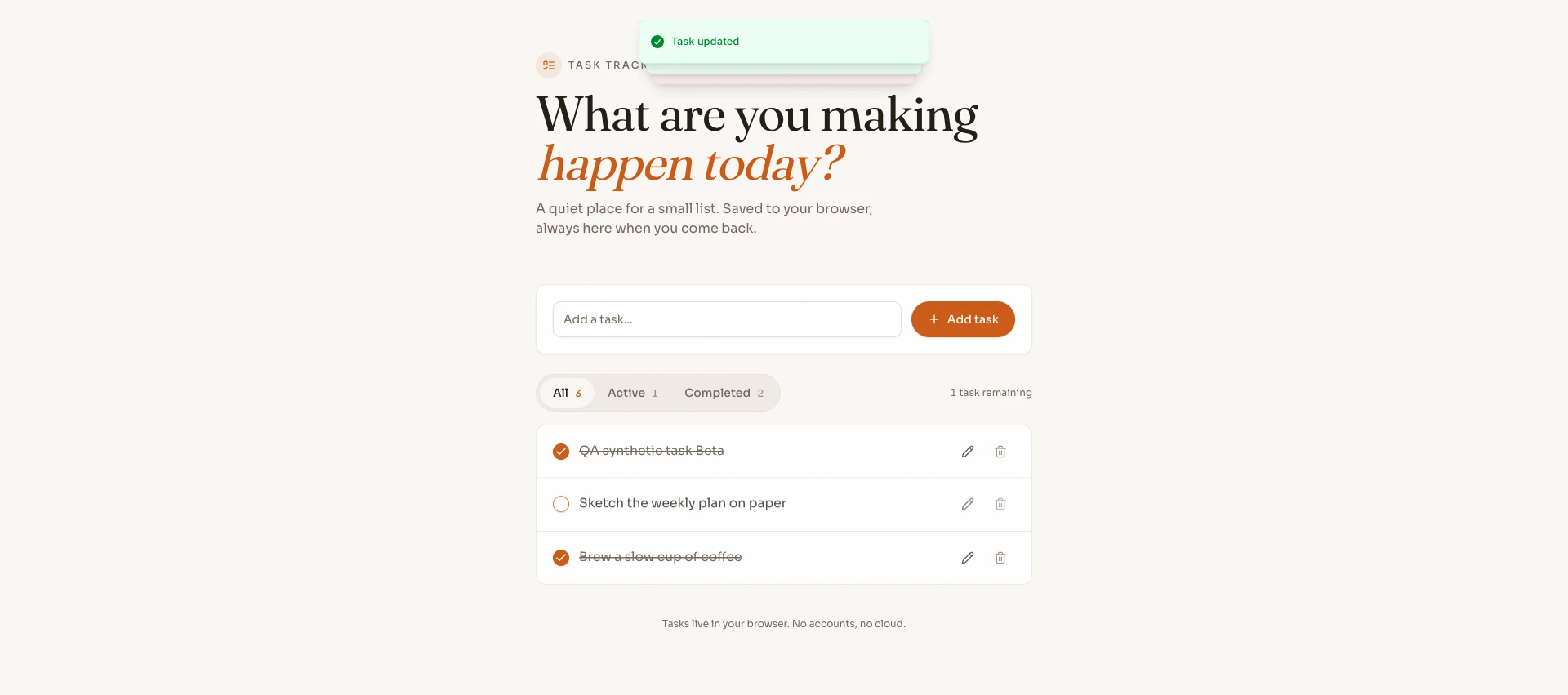
The disposable task after renaming and completion, before deletion. The filters show All 3, Active 1, and Completed 2.
If your generated version fails a check, describe the failed action and the expected behavior in a follow-up prompt. For example, tell the builder that an edited title disappears after reload, rather than asking it to “make the app better.” That is advice for your next step, not a repair we had to perform in this run. Revisions can consume additional credits.
5. Check the narrow screen too
At a 390-pixel viewport width, the document was also 390 pixels wide: we found no horizontal overflow in that check. We opened the edit state on mobile, and the edit input had an associated “Edit task title” label.
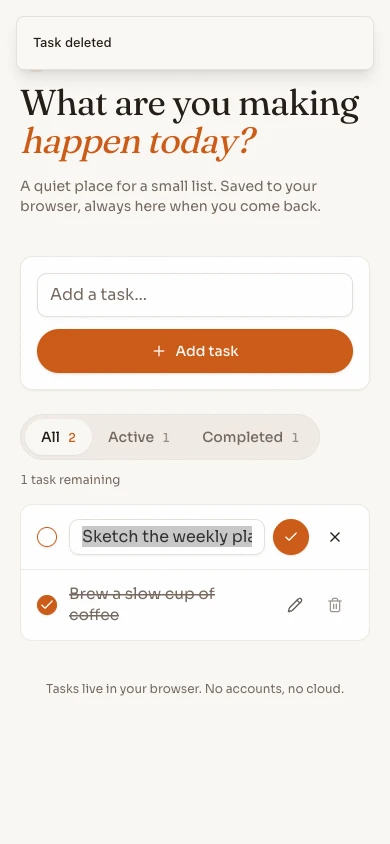
That is a useful small-screen check, not an accessibility certification. Before relying on your own app, try keyboard navigation, visible focus, long task titles, and the browsers and devices your users will use. These are recommended next checks, not results we are claiming here.
What 2.38 credits covered
The observed balance was 10.00 before the build and 7.62 afterward. The difference covered this small preview build with one initial prompt and one design clarification, without feature iterations or integrations.
Do not turn that into “an app costs 2.38 credits.” A more ambitious prompt, a different generated result, or repeated changes can lead to different usage. We are not converting the credits into money or quoting a subscription price. Check the current terms and your balance inside Emergent before deciding whether to continue.
The part I like is that the first generated preview handled the basic task lifecycle, including keeping the edited result after reload. The less convenient part was having to answer a design question after explicitly asking for defaults. The blank new builder tabs were another interruption, although the original tab let us continue.
Where this demo stops
This build has no authentication, backend, database, or cloud sync. Those were deliberate exclusions, not features that failed. It is suitable for learning how to turn a small requirement into a working browser interface.
It is not evidence that a customer-facing app is ready. Before using an app for shared work or real customer data, you would need to decide who can access which records, how data is stored and backed up, and how you will test and maintain it. Browser persistence alone answers none of those questions. A preview URL also does not establish a production deployment or uptime commitment.
If you are choosing a tool rather than following this exercise, our Emergent vs Bolt vs Cursor comparison covers the broader workflow differences. This task-tracker test should not be read as a hands-on test of the other two tools.
For a first attempt, I would keep the same scope: two sample tasks, local storage, and the seven checks above. Only add another feature once you can explain what the current version does and where its data lives.
We may earn a commission if you purchase through the link below, at no extra cost to you.
Try building a small app with Emergent
Start by checking your available credits. You do not need to connect GitHub, buy a domain, or add payments to repeat this preview exercise.